
PDF - Extract Table Data returns a single table from the PDF file provided. How can I extract multiple tables from a PDF?
Date
Votes
1 comment
-

Official comment Hi Alex,
To extract multiple tables in a PDF you will need to use the Encodian action PDF - Extract Table Data. This action extracts 1 table at a time therefore to extract multiple tables you will need to place it in an Apply to each.
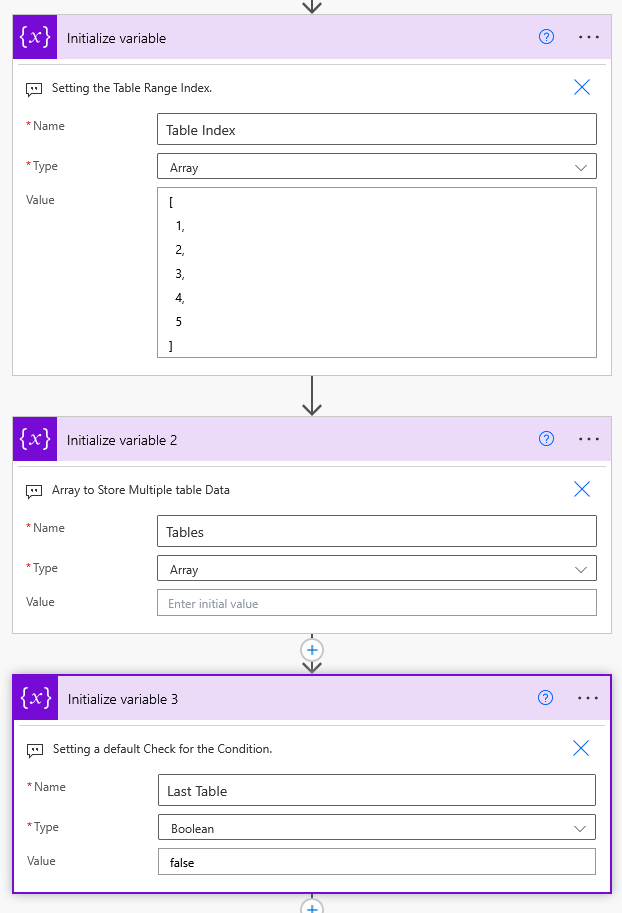
Please set up a flow as follows:- Initialize Variable to create a Table Range index.
- Set Type to 'Array'
- Set Value to Eg. '[1,2,3,4,5]'. This will extract up to 5 tables but use a number that will exceed any number of tables you may have.
- Insert a second Initialize Variable to store the table data from multiple tables (Type is 'Array' and leaving the Value empty)
- Insert a third Initialize Variable to check if there are further tables in the document and whether to continue in the loop or exit it (Type is 'Boolean' and Value set to 'false')
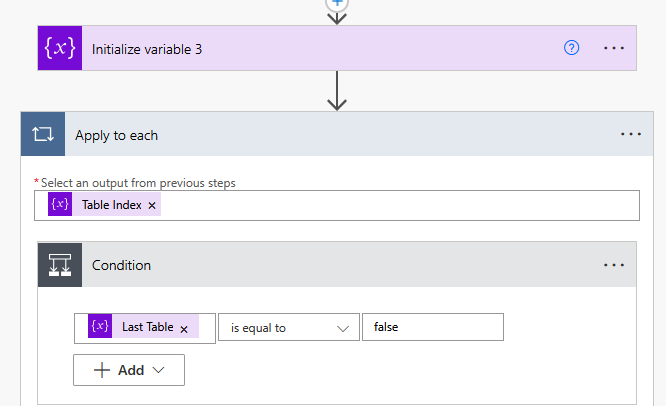
Add an apply to each action. Set Select an output from previous steps as the 'Table Index' variable from the initialise variable step above.
Add a Condition within the apply to each to check whether initialised boolean is equal to 'false'. In the above example, we named the boolean variable 'Last Table'.
We are building logic to say, if the returned table is the last table in the document, then exit the loop, otherwise continue extracting tables.
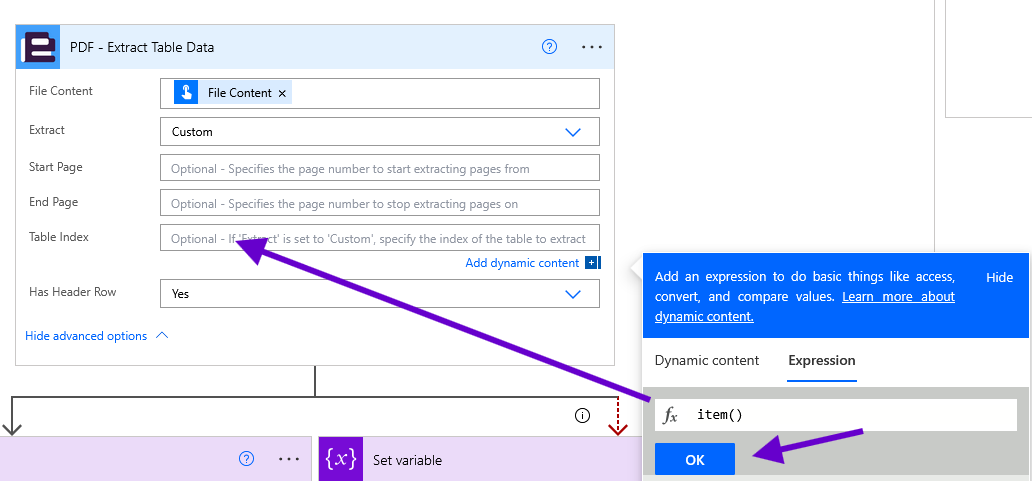
In the Yes side of the condition (i.e. if Last Table is equal 'false') we will place our PDF - Extract Table Data action.- Pass the dynamic File Content
- Set Extract parameter to 'Custom'
- Set Table index parameter to the following expression: item()
item() will refer to the data we are looping through in the apply to each which is our Table Index. Essentially we first get Table 1, then Table 2 and so on until there are no more tables.
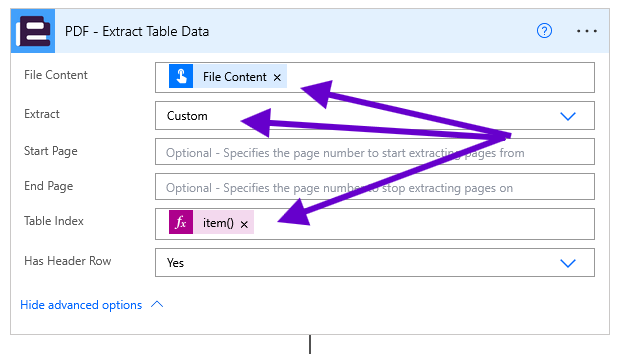
The action should display the following settings once added
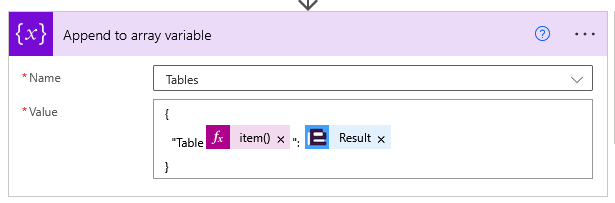
The next step is to add a parallel branch where:- On the left side add an Append Array Variable that is appending your table data to the previously initialised array Tables. Use the following format:
{
"Table<Item()>" : <Encodian Output Dynamic Content>
}
- On the Right Side add a Set Variable that references the Boolean variable called Last Table
Setting the Value to 'True'. - Click on the 3 dot ellipsis and configure the Run after of the action as shown in the screenshot:
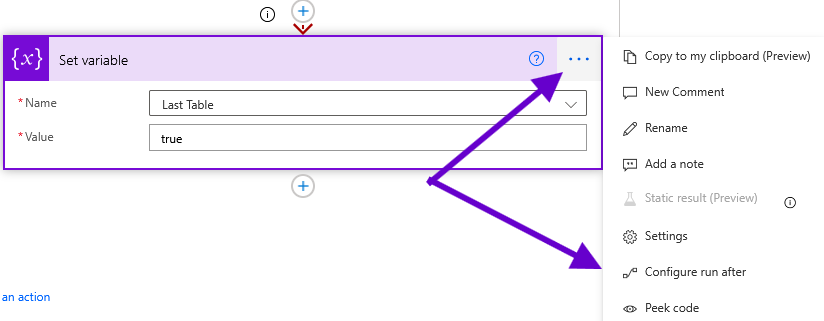
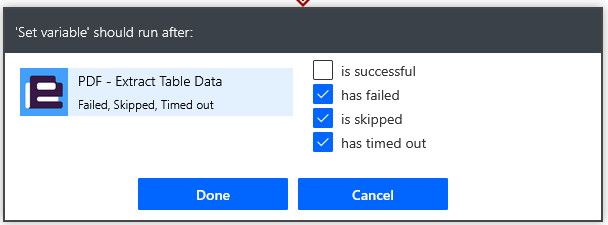
This action will only activate when the Encodian action fails (i.e.no more tables were found with the specified table index).
Once you select Done the final result should be look like the following screenshot below.
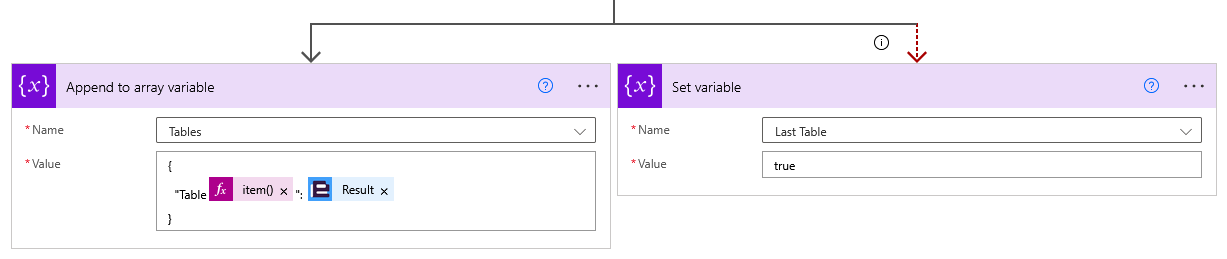
You can add the rest of your process outside the Apply to Each. We added a Terminate as an example below.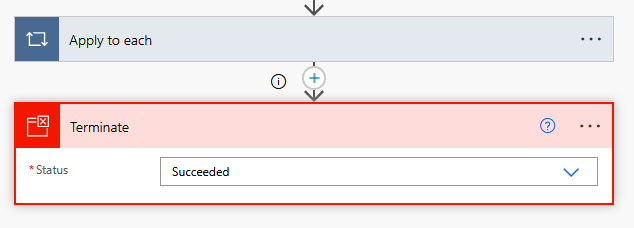
Again, set the Run After property for the first action after the Apply to each (in our case the Terminate)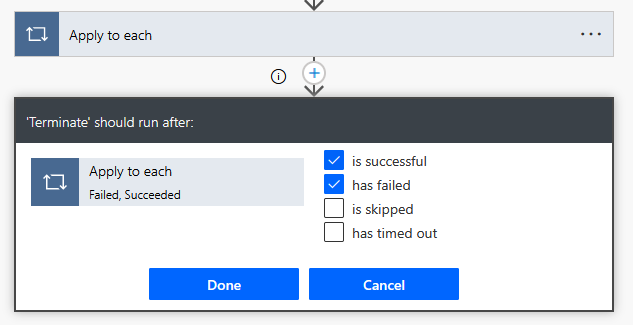
This is to ensure your flow progresses in both scenarios where there are no more tables (i.e. the Encodian action fails) or where a table was extracted for each number in the table index array (i.e. the apply to each succeeded).
Before we test our flow, if you do not want to wait for the Action to error out for 30 min it important to set the Retry Policy of the Encodian action to "None"
Further guidance can be found in the article below.
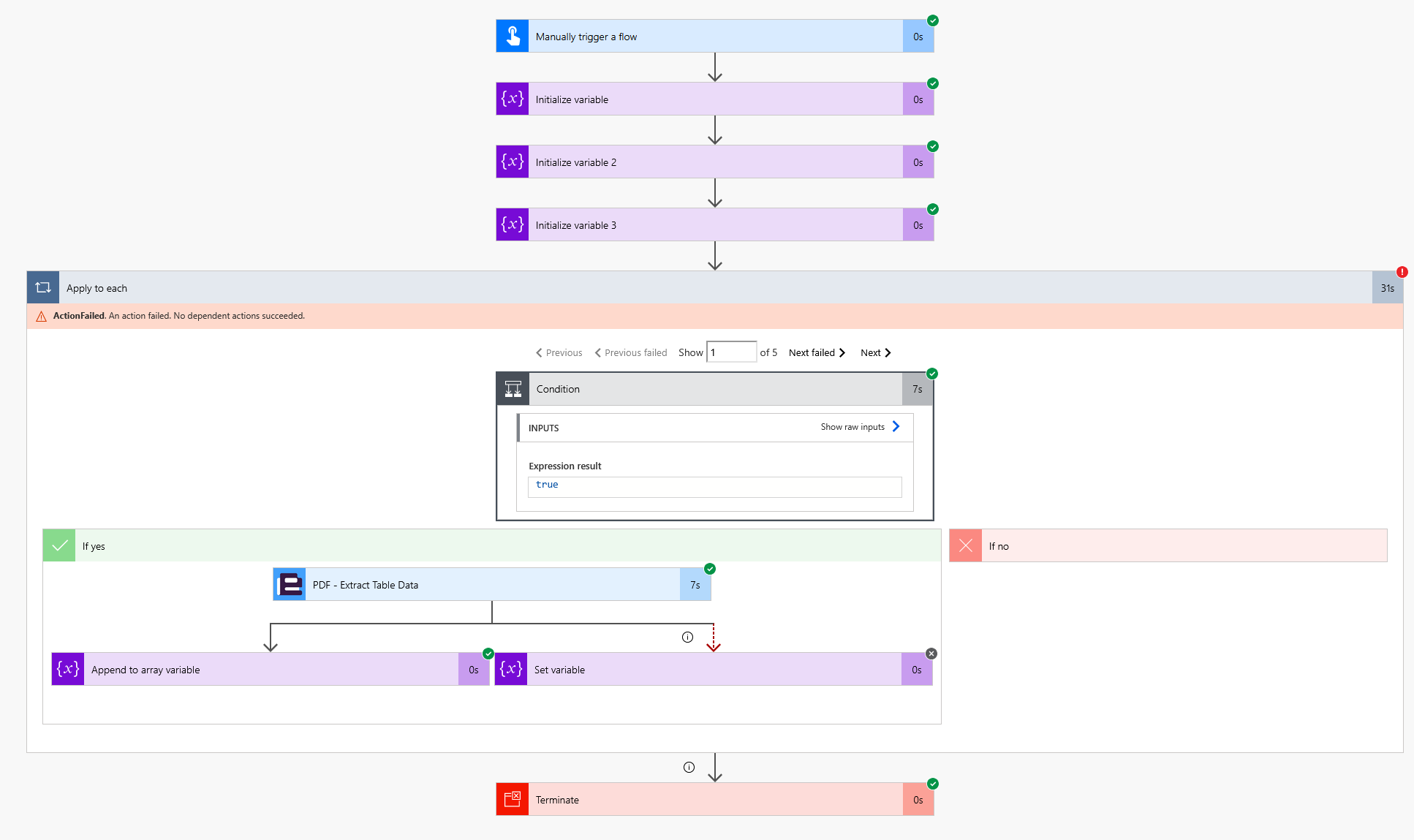
https://www.encodian.com/blog/power-automate-retry-policy/Then your flow should be ready for Testing and should result the following.
Please sign in to leave a comment.