PowerPoint - Merge Files

Power Automate Connector: Encodian – PowerPoint

Overview

The 'PowerPoint - Merge Files' flow action merges up to 1000 presentation files into a single file of the defined format. 

Input File Types

The following file types are supported for files to be merged:

  • PPT
  • PPTX
  • ODP

Output File Types

The merged output can be saved in any of the following file formats:

  • PPT
  • PDF
  • PPTX (Default)
  • XPS
  • PPSX
  • TIFF
  • ODP
  • PPTM
  • PPSM
  • POTX
  • POTM
  • HTML
  • SWF
  • OTP
  • PPS
  • POT
  • FODP
  • GIF

Credit Count

This action consumes 1 credit per operation.

Note, different Encodian actions can consume different numbers of credits. Please always check the action-specific documentation and read What is an Encodian Action for a full description of how credits are consumed.

Default Parameters

The default 'PowerPoint - Merge Files' flow action parameters are detailed below:

  • File Format: The format of the output presentation file
  • Filename: Optional -The filename of the output presentation file is set to 'presentation' by default.
  • Documents: The array of presentations to be processed

As a manually entered array:

  • Filename: The filename of the source file (including the file extension).
  • File Content: A Base64 encoded representation of the source file
  • Sort Position: Optional - Set the sort position for the document within the array, the lowest number first.
  • Slides: Optional - Specify which slides to include in the output (integer array)

As an array object:

Advanced Parameters

The advanced 'PowerPoint - Merge Files' flow action parameters are detailed below:

  • Master Style: Apply the style of the first provided presentation to all other presentations, set to 'No' by default

Documents - JSON Schema 

The JSON provided within the documents parameter should conform to the following schema:

{
"fileName": "<Filename including extension>",
"fileContent": "<File contents (Base 64 string)>",
"sortPosition": <Optional - Sort position number>,
"slidesToMerge": "<int array>"
}

Return Parameters

The 'PowerPoint - Merge Files' flow action returns the following data. 

Action Specific Return Values

  • File Content - The processed file (Base64)

Standard Return Values

  • OperationId - The unique ID assigned to this operation.
  • HttpStatusCode - The HTTP Status code for the response.
  • HttpStatusMessage - The HTTP Status message for the response.
  • Errors - An array of error messages should an error occur.
  • Operation Status - Indicates whether the operation has completed, has been queued or has failed.
Have more questions? Submit a request

7 Comments

  • 0
    Avatar
    Guillaume

    Hi,

    i don't understand how to use SortPosition : i need to merge 2 PPTX (1st : 14 slides, 2nd : 1 slide)  and insert the 2nd one after slide 13 of the 1st one. Help please :)

    Normal merge without using SortPosition insert the slide at the end.


    Guillaume


  • 0
    Avatar
    Jo Hall

    Hi Guillaume 

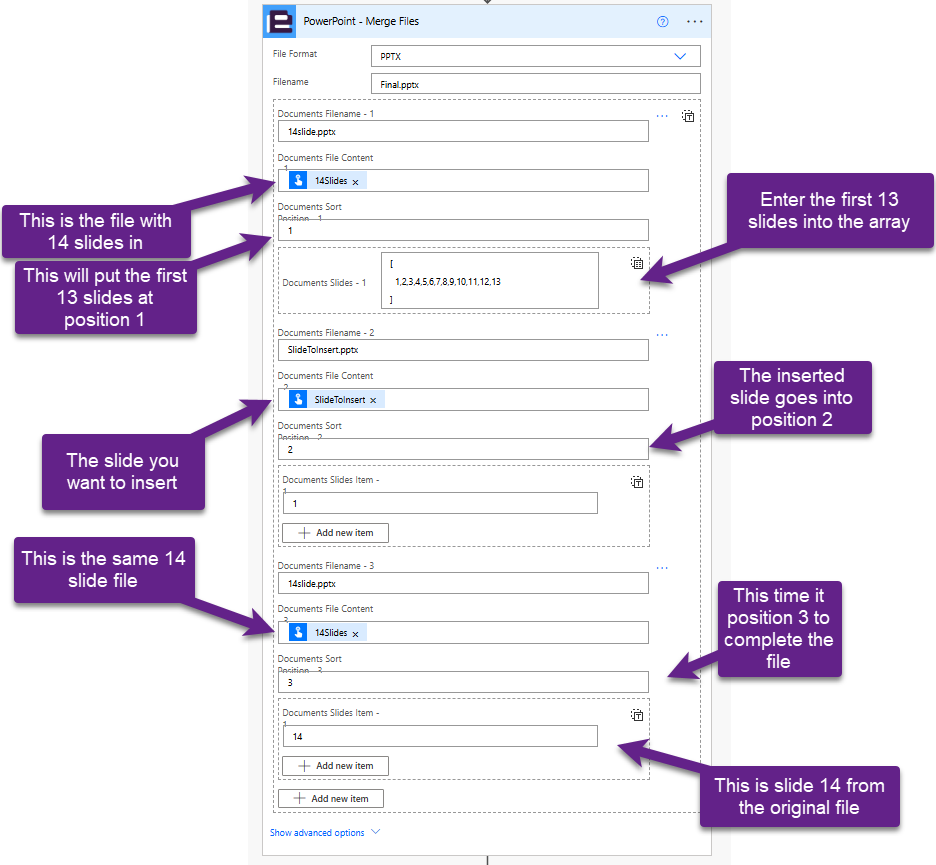
    Please see the below on how you would configure the action to insert a slide after slide 13 and then put the original slide 14 on the end of the file. 

    To hopefully make it clear I have called my files 14slides.pptx and SlideToInsert.pptx. This will output a 15 slide file

  • 0
    Avatar
    Guillaume

    hi


    it works perfectly, thanks a lot !

    Is there a way to NOT create a new defaut section in merged powerpoint whe insert a slide ?
    In my example, slides 1-13 are in a section, 14 and 15 too (one section each).


    Guillaume


  • 0
    Avatar
    Jo Hall

    Hi Guillaume

    The only way I can replicate this is if the original documents have sections in them. The merge seems to then try and honour these.

    I cannot see away around this (other than removing the section)

    You could raise this as a feature request Feature Requests – Encodian Customer Help and we would need to look into whether it would be possible to logically merge the sections. Would you want all the slides in a single section?


  • 0
    Avatar
    ANDONI

    Hi Jo Hall, Jay Goodison and everyone,

    Is there any known issue with this action?

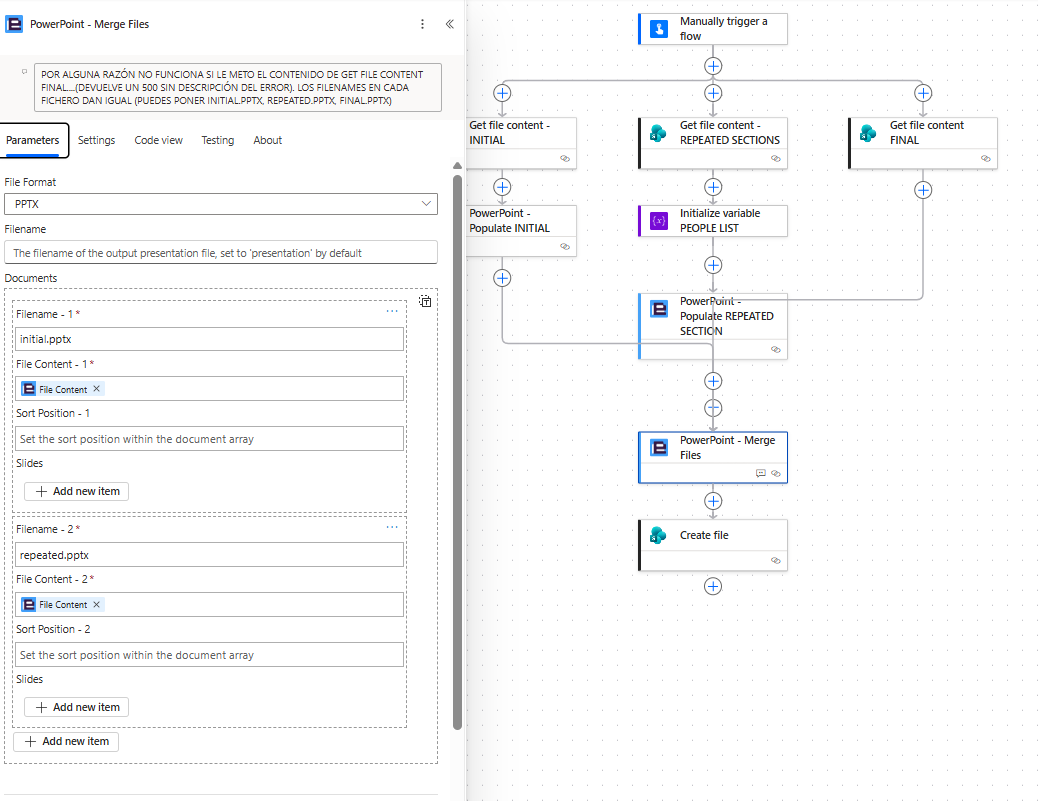
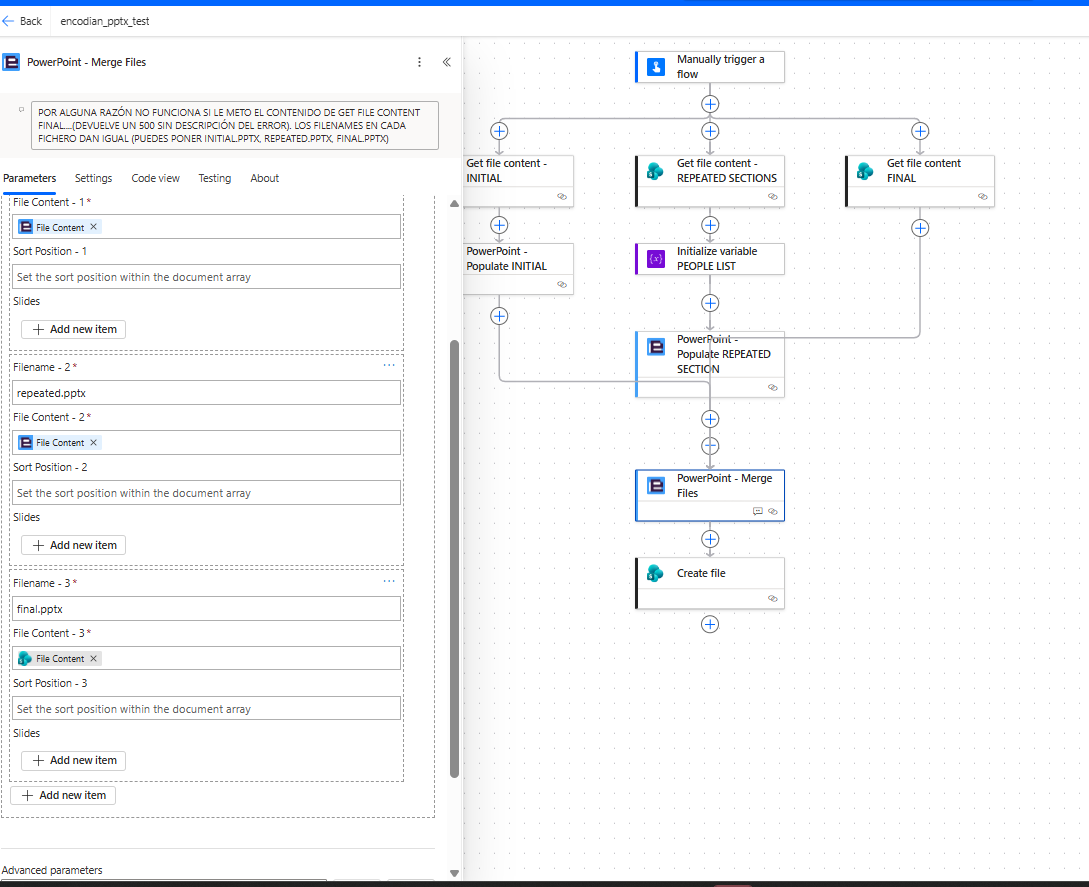
    When (in power automate cloud) I put 3 pptx files there (2 of them from encodian populate actions and one from sharepoint get files directly) it does not work (empty 500 error). However, when I put only the output of the encodian populate actions it works fine.

    To be clear, this works:But this does not:

    Thank you!

    Edited by ANDONI
  • 0
    Avatar
    Jo Hall

    Hi ANDONI

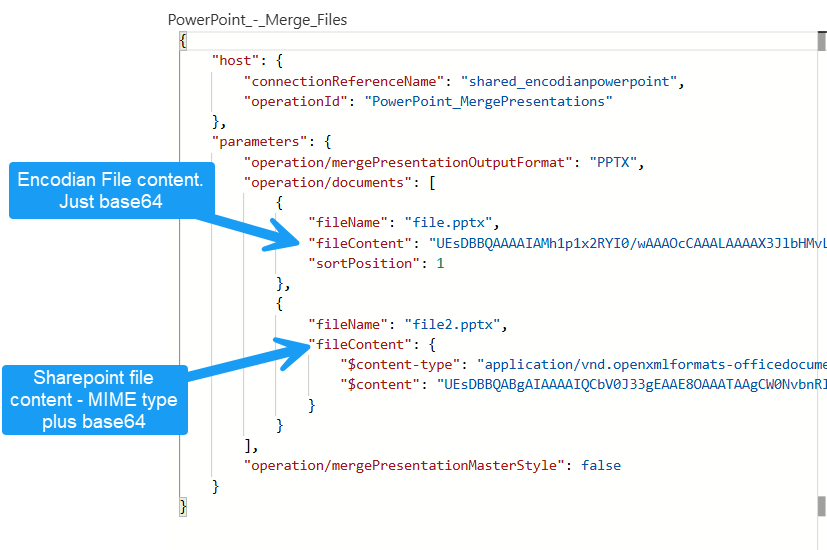
    From what you have described your issue is being caused by feeding two different formats of file content into the action i.e if you look at your inputs you will likely see something like this


    On their own both of these are valid or (as you have found) if you only pass Encodian files or only sharepoint files the action works but you cannot mix the two formats.


    In order to resolve the error wrap the sharepoint file content in a base64 expression

    In this case using this expression returns only the base64 string.

    Once this is done the action will run as expected.

    Edited by Jo Hall
  • 0
    Avatar
    ANDONI

    There you go, thanks a lot! I tried also passing the $content key (the pure base64 output) and was not working. I did what you said and works fine, appreciate it!

Please sign in to leave a comment.
Powered by Zendesk